Grok gets used at a different pace than other AIs. You ask in passing: a quick fact check, a take on something trending, a summary of a post that was too long to read. Twenty questions before lunch is a perfectly normal morning.
The bill for that speed arrives a few weeks later. By then the sidebar has become a wall of auto-titled entries, and buried in it are the handful of answers you genuinely meant to keep: the market breakdown that nailed it, the prompt that finally produced the right tone.
The history makes no distinction between those and the throwaway questions around them. The keeper from three weeks ago sits under a title you never chose, forty scrolls down, and every new question pushes it further.
A folder system would fix that, which is probably the search that brought you here. So let us answer it properly.
Does Grok have folders?
No. Grok folders do not exist as a native feature. There is nothing that groups conversations by topic or project, no tags, and no nesting.
The sidebar is a single reverse-chronological list: today on top, everything else pushed down by whatever comes next. That is true wherever you open Grok, on grok.com as well as inside X.
What Grok does have is Projects, containers that bundle conversations with files and instructions for one piece of work. They are genuinely useful and get their own section below, because what they organize is not your history.
That leaves two honest paths: lean on the native features plus some disciplined habits, or add a real folder system to the sidebar with a browser extension. This page walks through both.
The 3 features Grok offers instead of folders
Three native features touch on finding things again. Here is what each one covers, and where it ends:
Chat history
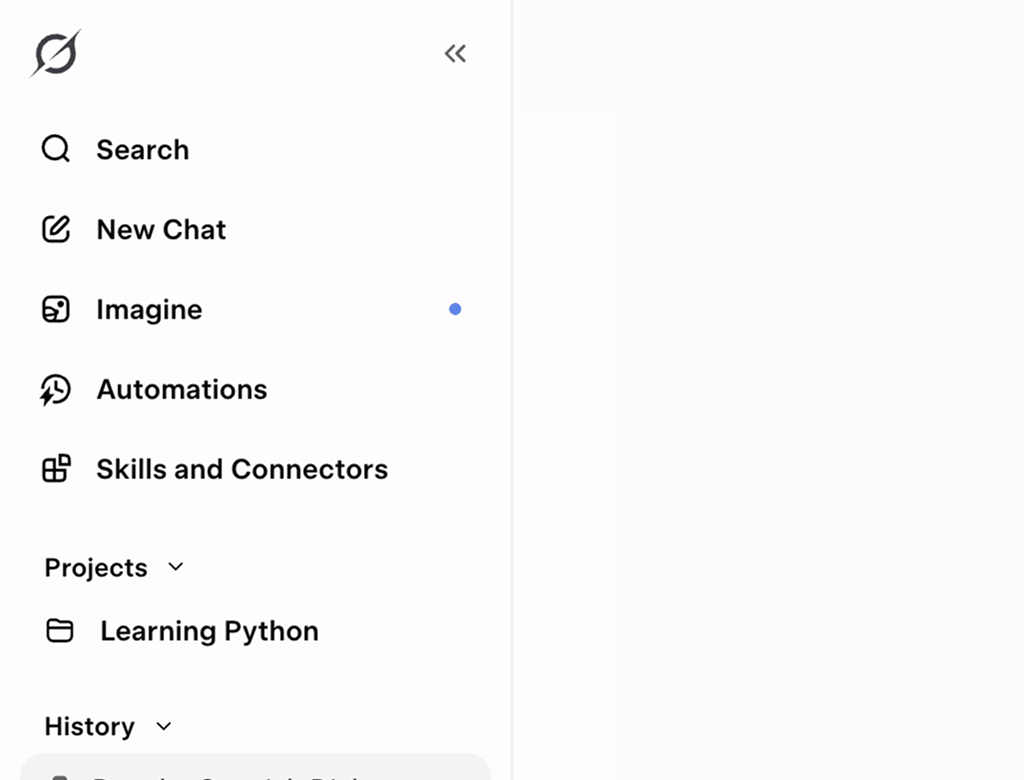
Every conversation is saved to your account and titled automatically after your opening question. Nothing gets lost, which is the good news.
The bad news is the shape: one flat list, ordered by date. At the pace Grok invites, it outgrows every other AI sidebar, and last month's entries are effectively invisible.
Search
Grok can search your conversations, and it works well when you remember a distinctive word from the chat or its title.
It fails in the most common case: you remember that a strong answer exists, but not the words it used. And even a hit only opens the conversation, leaving you to scroll for the one reply you actually came back for.
Projects
Projects are Grok's most substantial organizational feature. A Project holds its own conversations, files and custom instructions, plus a memory of its own, so every chat you start inside one begins with the full context already loaded.
For an ongoing initiative, that is exactly right, and nothing below replaces it. But a Project is built to power the next conversation, not to file the last thousand. There are no subfolders, and the chats outside your Projects, which is most of them, stay in the flat list.
Are Grok Projects the same as Grok folders?
No, and a workshop shows the difference fastest. A Project is a workbench, set up for one job so everything built on it starts with the right context. Folders are the shelves along the wall, holding everything the workshop has ever produced, labeled and sorted.
Side by side, Grok Projects vs. Grok folders looks like this:
| Capability | Grok Projects | Grok folders |
|---|---|---|
| Own files, instructions and memory | Yes | No |
| Focused room for one active project | Yes | Limited |
| Group the whole chat history | No | Yes |
| Subfolders and nesting | No | Yes |
| Works across other AIs | No | Yes |
| Organize retroactively | Limited | Yes |
A workbench does not replace shelves, and shelves do not replace a workbench. The practical setup is both: Projects for the two or three initiatives you are actively driving, folders for everything Grok has ever answered, including every conversation that never belonged to any Project.
Text highlighting: jump straight back to the best answer
Folders matter more for Grok than for slower tools. Quick questions pile up fast, and the good answers drown first, because they sit in the most noise.
The fix is not to slow down. Let ninety percent of your chats sink; they did their job the moment they were answered.
The ten percent worth keeping get a folder. File them by topic, and the best of your Grok history stays one click away.
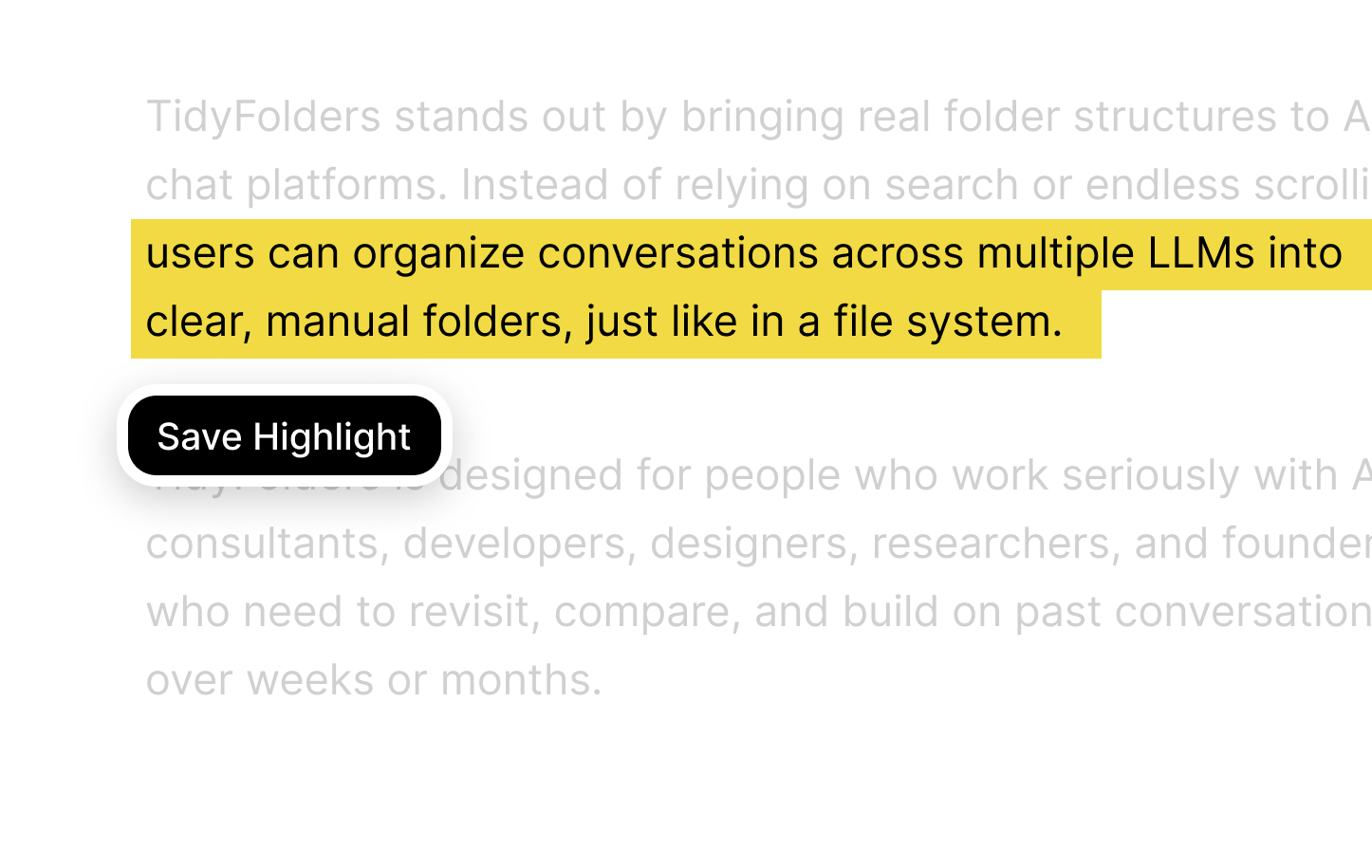
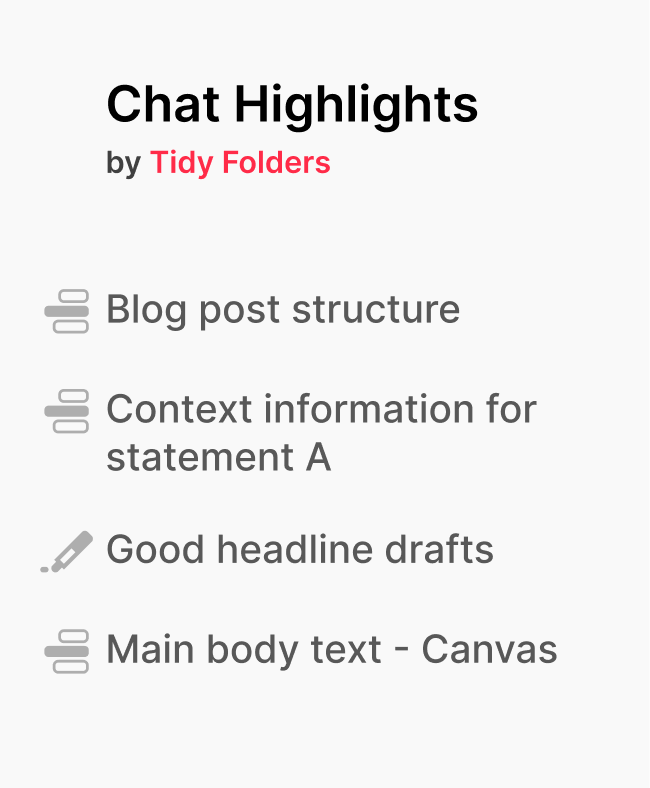
Then comes the highlight. Mark the sentences that matter inside a filed chat, and each mark becomes a link that drops you at that exact spot. The chat may be 80 messages long; the answer is still one click deep.
How to organize Grok chats without an extension: 2 workarounds
If you prefer no install at all, two habits get you part of the way. Both work, and both depend on daily discipline:
1. A naming convention
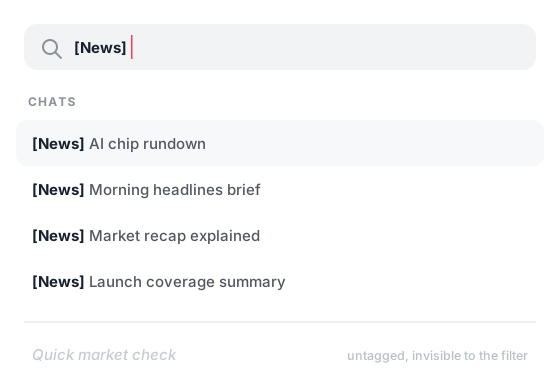
Grok lets you rename conversations, so give every keeper a prefix: "[News] Morning headlines brief" or "[Research] Chip supply overview". Searching the prefix then pulls up the group, which behaves almost like a folder.
The weakness is the word "every". The system only works if each chat gets renamed, forever, at a pace of dozens per week. Skip a busy day and the gaps start, and everything from before the convention never had a tag to begin with.
2. An external link index
Every Grok conversation has a stable URL, so a note in Notion, a doc or a bookmarks folder can collect links to your best chats. That gives you a curated shortlist living outside the app.
The cost: it is a second system fed entirely by hand, it only contains what you remembered to add, and each link lands you at the top of the conversation, with the answer you saved it for still somewhere below.
Both workarounds trade discipline for structure and still deliver no nesting, no overview and no jump back to the answer itself. Closing that gap takes an extension.
Real Grok folders with a free browser extension
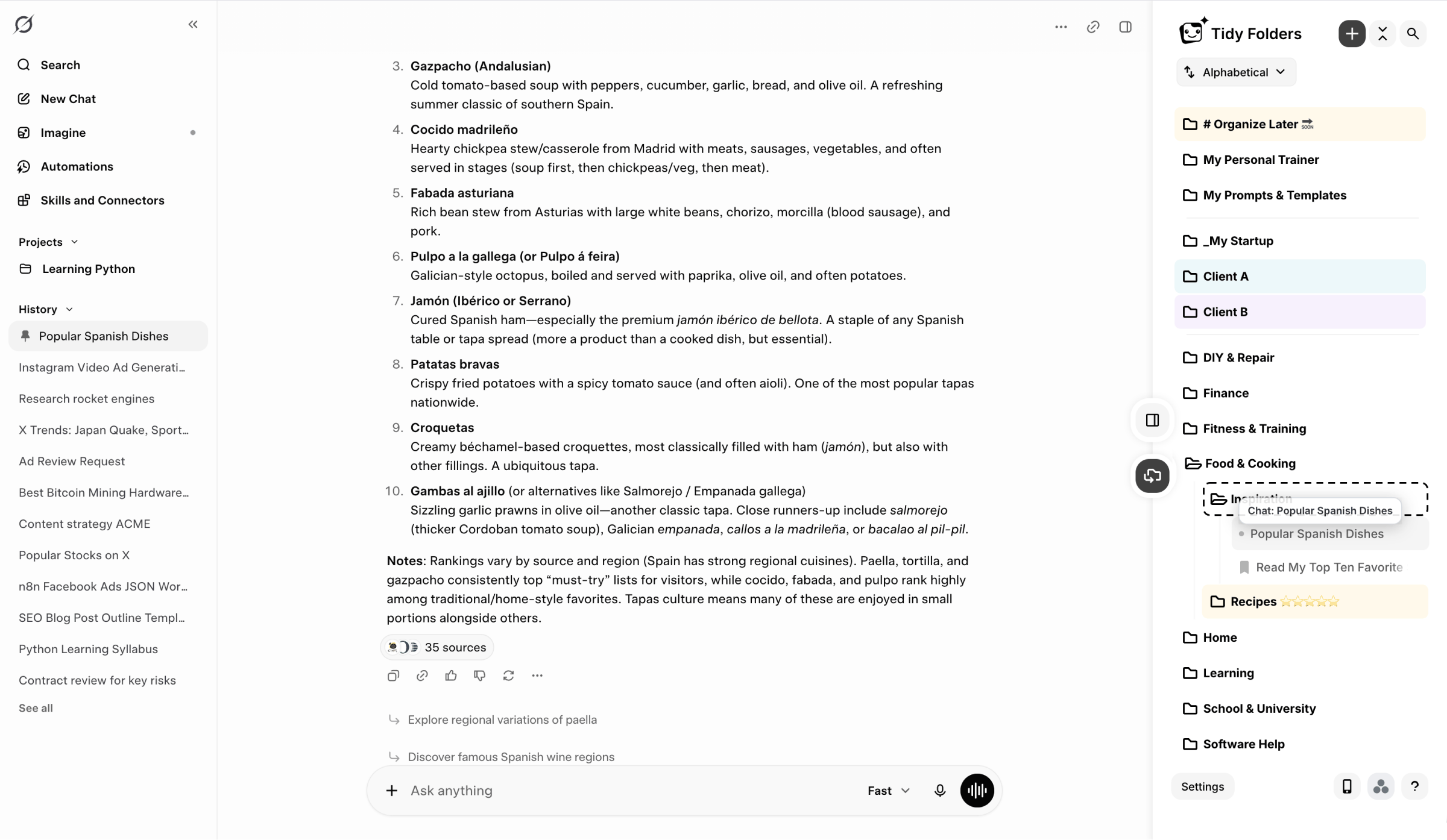
Tidy Folders changes the sidebar itself. It is a free extension that puts a folder panel directly into grok.com, working on the history you already have. In daily use that means:
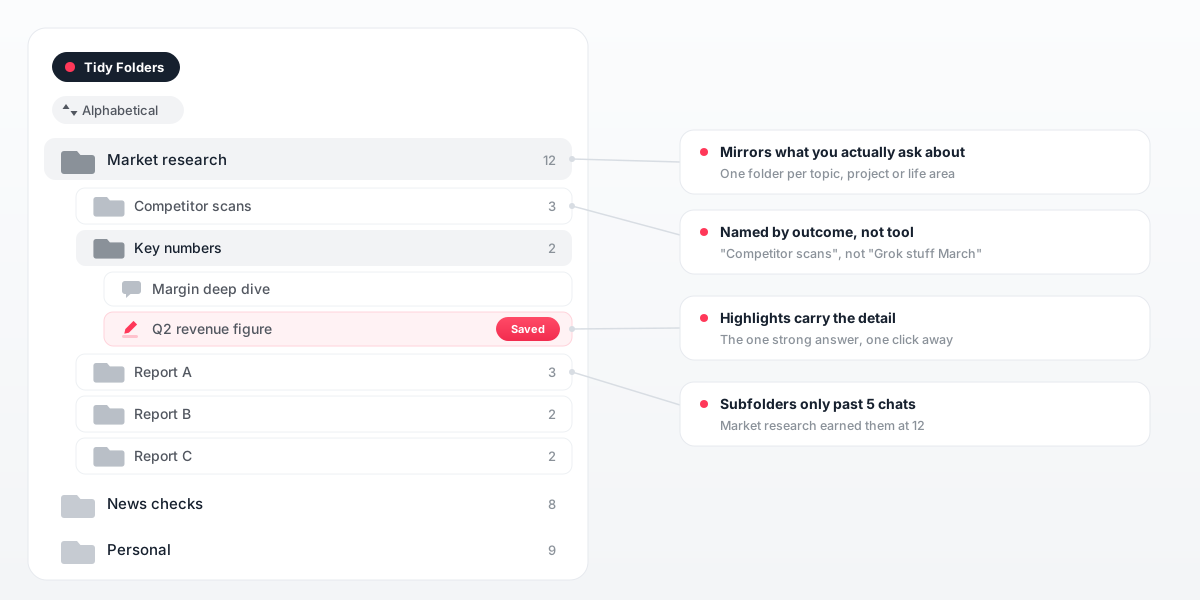
- Folders and subfolders by topic, project or client, arranged with drag and drop and nested wherever a subject grows.
- Colors and dividers that turn the panel into a map: your daily folders stand out, the rare ones sit tidily behind a divider.
- Highlights that pin the exact passage inside an answer and link straight back to it.
- Everything stays in place: Projects, search and your existing chats keep working exactly as before, with the folder layer on top.
How to set up Grok folders: 4 steps, about a minute
The setup is short enough to do between two questions:
- Add the free Tidy Folders extension to your browser.
- Open grok.com. The folder panel appears next to your chats, no separate app or window.
- Create a few folders and drag conversations in; add a subfolder wherever a topic starts to grow.
- When an answer is worth keeping, highlight its key passage. From then on it is one click away.
Start with a handful of folders that mirror what you actually ask about, and let the structure earn its depth over time. This is what a grown setup looks like:
9 Grok folders examples: turn quick chats into answers you can reuse
A Grok history has its own shape: many short chats, asked in passing, most of them disposable. The folder setups that hold up are the ones that only catch the keepers. Open the ones that match how you use Grok:
Market and news research: deep dives filed by topic
A research folder keeps the substantial briefings apart from the passing questions around them. Once an industry or a region keeps coming up, it earns a subfolder of its own. Highlight the figures and sources you expect to cite again, and the next briefing starts from filed material instead of a fresh search.
Trend watching: how a story developed, chat by chat
Grok is often the first stop when something spikes or a hashtag suddenly takes off. A trends folder collects those check-ins, so you can retrace how a story unfolded across several conversations. When a pattern turns out to matter, the highlight marks the moment it first became visible.
Content for X: hooks, threads and drafts in one place
Ideas for posts and threads arrive in bursts and vanish just as fast. A content folder holds the brainstorms, the hook variants and the drafts together instead of scattered across a week of sidebar. Highlight the angle you decided to run with, and writing day starts from a shortlist rather than a blank page.
Fact checks before posting: a growing reference shelf
A quick check with Grok before something goes out publicly is cheap insurance. Filed by topic, those checks quietly build a reference shelf over time. When the same claim resurfaces, the earlier answer and its reasoning are one click away instead of being asked from scratch.
Competitor scans: recurring look-ups in sequence
Recurring questions about the same companies belong together, not spread across months of history. One folder per competitor, or a single scans folder with subfolders, keeps every observation in order. The highlights then read like a timeline of what changed and when you noticed it.
Coding snippets: the fix, not the whole session
Debugging chats are hopeless to find by title, because they all begin with an error message. A folder per project keeps them attached to the code they belong to. Put a highlight on the command or snippet that actually solved it, and you never re-read a long session to recover three lines.
Travel planning: one folder per trip
A trip produces a swarm of small questions about connections, neighborhoods and timing. A folder per trip gathers them, and the plan assembles itself as you ask. Afterwards the folder doubles as a record of what worked, ready for the next visit to the same place.
Personal purchases: comparisons you can return to
Comparison questions pay off twice if you keep them. A purchases folder stores the spec comparisons and the reasoning behind what you finally picked. When a similar decision comes around again, you start from your own filed homework instead of repeating it.
A prompt library: the wording that finally clicked
Some prompts earn their keep and deserve to be reusable. A prompts folder collects the chats where the phrasing finally produced the right result, with a highlight on the prompt itself. Reusing it becomes a copy and paste, not a reconstruction from memory.
Nine setups, one common thread: let the throwaway chats sink, file the keepers by topic, and put a highlight on the passage you will want back. The structure stays light because it only carries the slice of your history that earned a place.
Grok folders that also hold your ChatGPT, Claude, Gemini and DeepSeek chats
Chances are Grok is not your only sidebar. The same flood exists in ChatGPT, Claude, Gemini and DeepSeek, and normally each one needs its own cleanup.
Tidy runs a single folder system across all 5, so one topic folder can hold the Grok quick take next to the ChatGPT draft and the Claude analysis. No native feature in any of them reaches across that line. More at tidyfolders.com.
Grok folders: FAQ
Does Grok have a folder feature?
No. Grok keeps every conversation in one chronological sidebar and offers search and Projects, but nothing that groups chats into folders. A browser extension such as Tidy Folders adds that layer on grok.com.
Are Grok Projects the same as folders?
No. A Grok Project gives one initiative its own conversations, files, instructions and memory. Folders sort your entire chat history, including everything that never belonged to a Project. The two coexist well.
How do I organize my Grok chat history?
Without installing anything, your options are a strict naming convention and an external index of chat links. For actual structure, the free Tidy Folders extension adds folders, subfolders and highlights directly to grok.com.
How do I find old Grok chats?
Grok's built-in search works when you remember a distinctive word from the conversation. When you only remember that a strong answer exists somewhere, folders are faster: the free Tidy Folders extension sorts chats by topic on grok.com, and a saved highlight jumps you straight to the exact passage.
Does Grok save my chat history?
Yes. Your conversations are stored in your account and listed in the sidebar, newest first. Saved is not the same as findable, though: the list only grows, and older chats keep sliding further down.
Can I organize Grok and ChatGPT chats in one place?
Yes. Tidy Folders runs one folder system across Grok, ChatGPT, Claude, Gemini and DeepSeek, so a single topic folder can hold conversations from all five side by side.
Is Tidy Folders free?
Yes. Installing and using the extension is free, in Chrome, Brave, Edge, Safari and Firefox.
Are Grok folder extensions safe?
Judge any extension by what it can read and store. Tidy Folders works without reading or transmitting your conversations in full; the only chat content it keeps are the highlights you choose to save yourself.
Do Grok folders work on mobile?
Not on the phone itself: extensions need a desktop browser, so the Tidy Folders panel lives on grok.com at your computer. A practical habit on the phone is renaming a chat you want to keep, then filing it into its folder the next time you sit down.